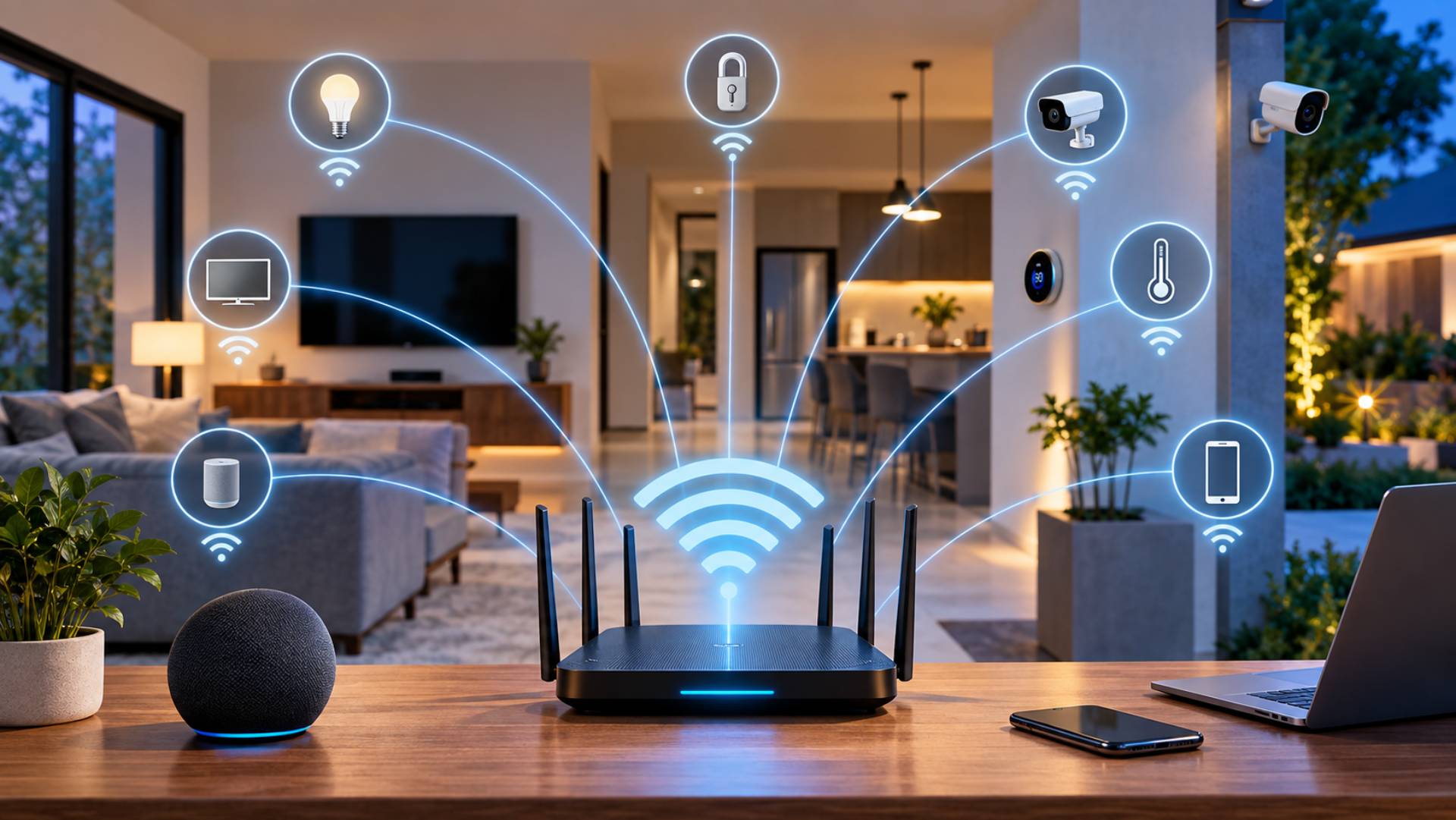
Smart homes depend on more than good devices. Lights, cameras, thermostats, speakers, doorbells, sensors and other connected products all rely on a network that can move information quickly and consistently. If that network has weak spots, even an expensive smart device can become slow, unresponsive or difficult to use.
A reliable smart home network starts with good Wi-Fi coverage, sensible router placement and the right mix of wireless and wired connections. Internet speed matters, but it is only one part of the picture. Your home’s size, walls, floors, number of devices and nearby wireless networks can have just as much effect on everyday performance.
Internet Speed and Wi-Fi Are Not the Same Thing
One of the most common smart home mistakes is assuming that faster broadband will fix every connection problem.
Your internet connection links your home network to online services. Wi-Fi is the wireless network that connects devices inside your property to your router or access points. You can have a very fast internet package and still experience poor Wi-Fi in an upstairs bedroom, garage or garden.
Local communication matters too. Some modern smart home systems can communicate inside the home without relying on a continuous internet connection. Matter, for example, works across technologies including Wi-Fi, Ethernet and Thread and supports local device communication.
This means troubleshooting should begin inside the home rather than automatically blaming the broadband provider.
Wi-Fi Coverage Matters More Than Maximum Speed
Smart devices have different network needs. A temperature sensor sends very little data, while security cameras can transfer video for long periods. Smart TVs, laptops, video doorbells and home-office equipment can place much heavier demands on the network.
Coverage becomes especially important because many smart devices are installed in awkward locations. A doorbell may sit behind a thick exterior wall. A garden camera could be several rooms away from the router. A thermostat might be positioned in a hallway with several walls between it and the nearest access point.
Good Wi-Fi should reach the places where devices are actually installed, rather than simply producing an impressive speed test beside the router.
Choosing Between 2.4 GHz, 5 GHz and 6 GHz
Modern Wi-Fi equipment may use several frequency bands.
The 2.4 GHz band generally travels farther and passes through walls more effectively, making it useful for many smart plugs, sensors and older connected products. Its drawback is that it can become crowded because many household and neighbouring devices use the same spectrum.
The 5 GHz band can provide faster connections and often experiences less congestion, but its useful range is usually shorter. It works well for TVs, computers, streaming devices and cameras that are reasonably close to the router.
Newer equipment may support the 6 GHz band. It provides extra wireless capacity for compatible devices but normally requires stronger coverage because higher-frequency signals lose strength more quickly through walls and over distance.
A well-designed network does not force every product onto the same band. It allows different devices to use the connection that suits their location and requirements.
Router Placement Can Change the Whole Network
Router position has a major effect on Wi-Fi coverage.
Placing a router in a cupboard, behind a television or at one end of the property can create weak areas. A more central, open position usually gives the signal a better chance of reaching the rest of the home.
Try to keep the router away from large metal objects, thick masonry, electrical equipment and other sources of interference. Concrete walls, foil-backed insulation, underfloor heating materials and some types of glazing can weaken wireless signals.
In a two-storey or three-storey property, placing all network equipment on the ground floor may leave the upper levels poorly served. The goal should be even coverage throughout the property rather than the strongest possible signal in one room.
When a Mesh Wi-Fi System Makes Sense
A mesh Wi-Fi system uses several access points positioned around a home instead of relying on one router to cover the entire building.
This can be useful in larger houses, properties with several floors and homes where thick walls create wireless dead zones. Devices can connect through the nearest suitable mesh point while remaining part of the same main network.
Mesh does not mean that adding more units will always improve Wi-Fi. Poorly positioned mesh points can create unnecessary wireless traffic or communicate with each other through weak links.
Placement matters. A mesh unit should normally sit somewhere that still receives a strong connection from the main router or another mesh point. Putting a unit directly inside an existing dead zone may give it very little signal to redistribute.
For homes with many connected products, modern mesh equipment can provide better coverage and network capacity when correctly positioned. The Connectivity Standards Alliance recommends modern mesh Wi-Fi for larger smart homes or homes with many Matter-over-Wi-Fi devices.
Ethernet Still Has an Important Role
Wireless connections are convenient, but Wi-Fi does not need to handle every device.
Ethernet cables can provide a stable connection for equipment that rarely moves. Smart TVs, desktop computers, network storage, game consoles, home-office systems, hubs and fixed security equipment may benefit from wired connections.
Using Ethernet for suitable devices can reduce the amount of wireless traffic competing for airtime. It can be particularly useful for mesh systems because some models allow wired connections between access points.
If you are renovating a home, running Ethernet cables to offices, entertainment areas and suitable camera locations can give you more networking options in the future.
Bandwidth and Latency Affect Devices Differently
Bandwidth describes how much data a connection can carry. Latency is the delay between sending information and receiving a response.
A security camera may need steady bandwidth because it transfers video. A smart light needs very little bandwidth, but users expect it to react quickly after pressing a button or giving a voice command.
This is why a network can appear fast during a download test but still make smart devices feel slow. Poor signal quality, congestion and delays between devices can cause noticeable response problems even when the internet connection itself is fast.
Why Smart Devices Keep Disconnecting
Repeated disconnections often point to a local network problem rather than a faulty product.
If one device keeps dropping offline, first check its signal strength and location. If several devices in the same area have problems, coverage is a more likely cause.
A practical troubleshooting order is:
- Restart the affected device and network equipment, then check whether the problem returns.
- Confirm that the device has a strong wireless signal where it is installed.
- Check whether moving the router or nearest mesh point improves the connection.
- Install current router and device firmware.
- Look for interference from nearby networks or household electronics.
- Check whether the router is overloaded with more devices than it handles comfortably.
- Test a wired connection where the device supports Ethernet.
- Avoid adding repeaters or mesh points until you know where the weak areas actually are.
Changing several settings at once makes problems harder to diagnose. Make one change, test the result and then move to the next step.
Building the Network Around Your Type of Home
Small Apartments
A good-quality router placed centrally may be enough for a small flat. The larger issue is often wireless congestion from neighbouring properties.
Router placement and sensible use of Wi-Fi bands may provide better results than adding several access points to a compact space.
Multistorey Houses
A single router can struggle to reach several floors, particularly where floors and internal walls contain dense materials.
Mesh Wi-Fi or properly installed access points can provide more even coverage. Wired connections between floors are useful where practical.
Homes With Outdoor Smart Devices
Garden cameras, gates, lighting and outdoor sensors often sit beyond the strongest indoor Wi-Fi coverage.
Check the signal at the actual installation point before buying extra equipment. An indoor access point close to an exterior wall may sometimes be enough. Larger gardens may need dedicated outdoor-rated networking equipment.
Home Offices
Work computers, video calls and cloud applications should receive consistent network performance even when smart TVs, cameras and other household devices are active.
Ethernet is worth considering for a permanent desk. If Wi-Fi is required, place an access point where the office receives a strong signal rather than depending on coverage from the opposite side of the house.
Homes With Dozens of Connected Devices
Large smart homes need network capacity as well as coverage.
Smart bulbs and sensors may use little bandwidth individually, but dozens of Wi-Fi devices can increase the workload placed on network equipment. Cameras, televisions and computers add much heavier traffic.
Some low-bandwidth smart products use technologies such as Thread rather than connecting every individual device directly through traditional Wi-Fi. Thread is an IP-based, low-energy mesh technology created for connected devices such as sensors, locks and lighting.
The best setup may combine Ethernet, Wi-Fi and smart-home-specific networking rather than expecting one technology to handle everything.
Do More Routers or Extenders Automatically Improve Wi-Fi?
No. Extra equipment only helps if it solves a specific coverage or capacity problem.
An extender installed in a poor location may repeat an already weak signal. Several unmanaged access points can create interference or make device roaming less predictable. Connecting a second router incorrectly can even create separate local networks, making some smart devices harder to discover or control.
Map the problem first. Check which rooms have weak coverage, which devices are affected and whether the issue occurs at particular times. Once you know the cause, you can decide whether repositioning equipment, adding a mesh point, installing Ethernet or replacing outdated hardware is the better fix.
Keep the Smart Home Network Secure
Reliability and security should be treated together.
Change default router administrator credentials, use a strong Wi-Fi password and keep router software current. The US Federal Trade Commission recommends WPA3 Personal where available, with WPA2 Personal remaining suitable for compatible older equipment.
Check the router’s connected-device list from time to time as well. It can help you identify unfamiliar devices and remove products you no longer use.
Be careful with guest-network isolation if you use smart-home systems that depend on local communication. Some guest networks intentionally prevent devices from seeing each other, which can interfere with certain smart-home functions.
Frequently Asked Questions
How fast should my internet be for a smart home?
There is no single speed that suits every property. Basic sensors and smart lights use very little data, while multiple security cameras, televisions and computers can require much more. Stable coverage and sufficient local network capacity are just as important as the broadband speed advertised by your provider.
Is 2.4 GHz better for smart home devices?
It can be useful because it usually offers longer range and better wall penetration. Many smart products support 2.4 GHz for this reason. Devices that need more bandwidth may perform better on 5 GHz or another compatible connection.
Is mesh Wi-Fi better than a normal router?
Mesh Wi-Fi can be useful in larger or multistorey properties where one router cannot provide consistent coverage. A well-positioned single router may still be perfectly suitable for a smaller home.
Should smart devices be connected to a guest network?
It depends on the devices and network design. Some guest networks isolate connected products from one another. That can stop smart-home systems that depend on local device communication from working correctly.
Can smart home devices work without the internet?
Some can. Local controls may continue working when the internet is unavailable, depending on the product and smart-home platform. Matter, for example, supports local communication between compatible devices. Cloud-based functions and remote access may still require an internet connection.
Does Ethernet make smart devices faster?
Ethernet can provide a stable, low-latency connection for compatible fixed devices. Its biggest benefit is often consistency rather than noticeably higher speed. Moving suitable equipment onto Ethernet can also reduce pressure on Wi-Fi.
Conclusion
A reliable smart home begins with the network rather than the devices connected to it. Strong broadband cannot compensate for a badly positioned router, weak Wi-Fi coverage or heavy interference inside the property.
Start by looking at where devices are located and how they connect. Position the router carefully, use mesh networking where the property genuinely needs wider coverage, and choose Ethernet for suitable fixed equipment. Consider the needs of cameras, computers, sensors and low-bandwidth smart devices separately instead of treating every connection in the same way.
The best smart home network is rarely the one with the most equipment. It is the one planned around the size of the property, its building materials, device locations and everyday network demand. Get those basics right and connected devices are far more likely to remain responsive, stable and useful.
Meta Title: Smart Home Wi-Fi and Connectivity: A Reliable Network Guide
Meta Description: Learn how to build reliable smart home Wi-Fi with better coverage, router placement, mesh networking, Ethernet, and practical troubleshooting advice at home.